PCFreak Logo (c) Der PCFreak

Author Archive

SuSE Linux – Umzug von Promise Raid auf Vmware Kommentare deaktiviert für SuSE Linux – Umzug von Promise Raid auf Vmware

Die Kopie eines SuSE Linux (SuSE Linux 8.1 – Kernel 2.4.19-4GB) brachte beim ersten Start auf einem ESX-Server Fehler mit „ataraid“ und „pdcraid“ und landete dann in einem kernel-panic, da es Probleme beim Zugriff auf /dev/sda2 gab.

Es war nötig, mit einem Rettungssystem (Ubuntu) zu booten. Um überhaupt vernünftig arbeiten zu können wurden folgende Schritte durchgeführt (/dev/sda2 = /):

sudo -i
mount /dev/sda2 /mnt
mount --bind /proc /mnt/proc
#mount --bind /sys /mnt/sys
chroot /mnt

Nun sind wir also von Ubuntu aus in einer chroot-Umgebung auf dem SuSE System. Zunächst mussten die richtigen Verweise auf die entspr. Partitionen in den Dateien

/etc/mtab
/etc/fstab
/boot/grub/menu.lst
/etc/grub.conf

angepasst werden. Danach war es nötig, das Laden der Module „ataraid“ und „pdcraid“ zu unterbinden und das Laden eines LSI-SCSI-Treibers zu ermöglichen, dazu wurde in /etc/sysconfig/kernel die Zeile

INITRD_MODULES="ataraid pdcraid reiserfs"

geändert in

INITRD_MODULES="mptbase mptscsih reiserfs"

Im Anschluss wurde in der Datei /etc/modules.conf die Zeile

alias scsi_hostadapter off

durch folgende 2 Zeilen ersetzt

alias scsi_hostadapter mptbase
alias scsi_hostadapter1 mptscsih

und die Zeile

alias eth0 e35b

in

alias eth0 pcnet32

Nun wird mit dem Befehl

mkinitrd

ein neues Boot-Image erstellt.

Nun unter Ubuntu wieder alle Partitionen umounten und danach runterfahren. Das SuSE-System sollte nun wieder problemlos booten.

Siehe dazu auch : Virtual machine does not boot after being converted from a physical Red Hat machine
PAExec – PsExec zum Verteilen Kommentare deaktiviert für PAExec – PsExec zum Verteilen

Fast jeder Administrator kennt das Tool PsExec von Sysinternals (Mark Russinovich). Es hat leider 2 störende Probleme:

  • man darf es nicht mit eigenen Programmen distributieren
  • Benutzernamen und Passwörter werden im Klartext übergeben

Abhilfe schafft das kleine Programm PAExec, welches von jedermann heruntegeladen werden kann und explizit in OpenSource, Freeware und sogar kommerziellen Produkten eingesetzt werden darf.

PAExec kann hier heruntergeladen werden: http://www.poweradmin.com/PAExec/

Hier die Hilfe zum Programm:

Usage: PAExec [\\computer[,computer2[,…] | @file]][-u user [-p psswd][-n s][-l]
[-s|-e][-x][-i [session]][-c [-f|-v] [-csrc path]][-lo path][-rlo path][-ods]
[-w directory][-d][-][-a n,n,…][-dfr] cmd [arguments]

Standard PAExec\PsExec command line options:

-a Separate processors on which the application can run with commas where 1 is the lowest numbered CPU. For example, to run the application on CPU 2 and CPU 4, enter:
-a 2,4
-c Copy the specified program to the remote system for execution. If you omit this option the application must be in the system path on the remote system.
-d Don’t wait for process to terminate (non-interactive).
-e Does not load the specified account’s profile.
-f Copy the specified program even if the file already exists on the remote system.
-i Run the program so that it interacts with the desktop of the specified session on the specified system. If no session is specified the process runs in the console session.
-h [NOT IMPLEMENTED] If the target system is Vista or higher, has the process run with the account’s elevated token, if available.
-l [EXPERIMENTAL] Run process as limited user (strips the Administrators group and allows only privileges assigned to the Users group). On Windows Vista the process runs with Low Integrity.
-n Specifies timeout in seconds connecting to remote computers.
-p Specifies optional password for user name. If you omit this you will be prompted to enter a hidden password.
-s Run the process in the System account.
-u Specifies optional user name for login to remote computer.
-v Copy the specified file only if it has a higher version number or is newer on than the one on the remote system.
-w Set the working directory of the process (relative to remote computer).
-x Display the UI on the Winlogon secure desktop (local system only).
-priority Specifies -low, -belownormal, -abovenormal, -high or -realtime to run the process at a different priority. Use -background to run at low memory and I/O priority on Vista.
computer Direct PAExec to run the application on the remote computer or computers specified. If you omit the computer name PAExec runs the application on the local system, and if you specify a wildcard (\\*), PAExec runs the command on all computers in the current domain.
@file PAExec will execute the command on each of the computers listed in the file.
program Name of application to execute.
arguments Arguments to pass (note that file paths must be absolute paths on the target system).

Additional options only available in PAExec:

-cnodel If a file is copied to the server with -c, it is normally deleted (unless -d is specified). -cnodel indicates the file should not be deleted.
-csrc When using -c (copy), -csrc allows you to specify an alternate path to copy the program from. Example: -c -csrc „C:\test path\file.exe“
-dbg Output to DebugView (OutputDebugString)
-dfr Disable WOW64 File Redirection when launching the new process
-lo Log Output to file. Ex: -lo C:\Temp\PAExec.log
The file will be UTF-8 with a Byte Order Mark at the beginning.
-rlo Remote Log Output: Log from remote service to file (on remote server).
Ex: -rlo C:\Temp\PAExec.log
The file will be UTF-8 with a Byte Order Mark at the beginning.

The application name, copy source, working directory and log file entries can be quoted if the path contains a space. For example:
PAExec \\test-server -w „C:\path with space“ „C:\program files\app.exe“

Input is sent to the remote system when Enter is pressed, and Ctrl-C stops the remote process and stops PAExec.

PsExec passes all parameters in clear-text. In contrast, PAExec will scramble the parameters to protect them from casual wire sniffers, but they are NOT encrypted. Note that data passed between PAExec and the remote program is NOT scrambled or encrypted — the same as with PsExec.

PAExec will return the error code it receives from the application that was launched remotely. If PAExec itself has an error, the return code will be one of:
-1 = internal error
-2 = command line error
-3 = failed to launch app (locally)
-4 = failed to copy PAExec to remote (connection to ADMIN$ might have failed)
-5 = connection to server taking too long (timeout)
-6 = PAExec service could not be installed/started on remote server
-7 = could not communicate with remote PAExec service
-8 = failed to copy app to remote server

Windows 7 Profilordner komplett auf anderes Laufwerk legen 4

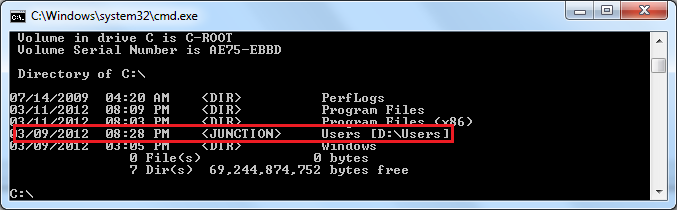
Junction to moved user folder

Windows 7 unterstützt wie seine Vorgänger die Option, z.B. den Ordner für Eigene Dateien in der grafischen Benutzeroberfläche zu verschieben. Da im Benutzerprofil (z.B. C:\Users\<benutzername> aber auch viele Konfigurationsdateien für Anwendungen liegen, diese jedoch nicht so einfach verschoben werden können, hier kurz ein Weg, wie es trotzdem klappt.

  1. Bevor wir beginnen muss am laufenden System festgestellt werden, wo sich derzeit der Profilordner befindet (z.B. C:\Users)
    und wo er später hin soll (z.B. D:\Users)
  2. Mit der Windows 7 CD in den Wiederherstellungskonsole booten und die Eingabeaufforderung wählen
  3. Feststellen, auf welchem Laufwerksbuchstaben NUN das installierte Windows liegt, in meinem Fall war es D:\ (D:\ in der WHK ist also C:\ im laufenden Betrieb)
    ggf. mit diskpart –> list vol auslesen
  4. Feststellen, auf welches Laufwerk wir die Benutzerprofile verschieben wollen, in meinem Fall war es E:\ (E:\ in der WHK ist also D:\ im laufenden Betrieb)
    ggf. mit diskpart –> list vol auslesen
  5. Mit robocopy die Profile kopieren
    robocopy D:\Users E:\Users /mir /xj /copyall
    (/xj ist extrem wichtig, dadurch werden Junction Points NICHT mitkopiert)
  6. Sicherstellen, dass die Dateien erfolgreich kopiert wurden
  7. D:\User umbenennen in D:\Users.bck (REN D:\Users D:\Users.bck)
  8. Link anlegen
    Die Problemstellung ist, dass wir eine „Directory Junction“ anlegen müssen. Diese kann aber nur mit tatsächlich vorhandenen
    Pfaden angelegt werden. Also erzeugen wir uns ggf. per SUBST einen Laufwerksbuchstaben um damit zu arbeiten.
    Je nach der aktuellen Laufwerkskonfiguration geht es auch ohne SUBST. In meinem Fall war das möglich, da ich ja ein Laufwerk D: in der Wiederherstellungskonsole verfügbar hatte.
  9. MKLINK D:\Users D:\Users /j
    weil im Moment (Wiederherstellungskonsole) C:\Users auf D:\Users liegt, jedoch bei gebootetem Windows auch wieder
    auf D:\Users zeigen soll!
  10. Wiederherstellungskonsole verlassen und Windows 7 wieder normal booten.
  11. Wenn die Anmeldung klappt, hat es funktioniert, ansonsten zurück in die Wiederherstellungskonsole und weiter üben!
  12. Den Ordner C:\Users.bck löschen.

Windows 7 Bootzeiten drastisch reduzieren Kommentare deaktiviert für Windows 7 Bootzeiten drastisch reduzieren

Windows 7 hat eine interne Optimierung, die mitunter die Bootzeiten drastisch reduziert. Leider kann es je nach Auslastung des Systems vorkommen, dass Windows diese Optimierung nie durchführt, da vor allem sehr ausgelastete Systeme eben nie „idle“ sind. Hier hilft es weiter, diesen Prozess manuell anzustarten:

  start /wait Rundll32.exe advapi32.dll,ProcessIdleTasks

Nach einiger Wartezeit startet das System merklich schneller! Es empfielt sich übrigens auch, diesen Befehl auch vor dem Imagen einer Musterinstallation abzusetzen um allen zukünftigen Nutzern des Images bereits von Anfang an schnelle Bootzeiten zu ermöglichen.

Eine weitere Bremse können Netzlaufwerke sein.
Es kursiert das Gerücht, dass folgender Registry Key:

  HKEY_CURRENT_USER\Software\Microsoft\Windows\CurrentVersion\Explorer\Advanced
  DWORD 32bit
  NoNetCrawling = 1

die Bootzeiten drastisch beschleunigen soll, leider ist das Gegenteil der Fall, Windows 7 bootet damit sogar noch langsamer, also einfach vergessen!

Stattdessen folgenden Registry-Key setzen, dieser stellt ein, dass Netzlaufwerke erst dann wieder verbunden werden, wenn man sie nutzt:

  HKLM\SYSTEM\CurrentControlSet\Control\NetworkProvider
  DWORD (32bit)
  RestoreConnection = 0

Probiert es einfach mal aus, die obigen 2 Tipps beschleunigen den Bootvorgang wirklich!

open-vm-tools unter Debian Squeeze installieren Kommentare deaktiviert für open-vm-tools unter Debian Squeeze installieren

Ich hatte mit der aktuellsten VMware Workstation für Windows Probleme die mitgelieferten VMware Tools unter Debian Squeeze zu installieren (Fehler: gcc und kernel header nicht gefunden) und habe mich kurzerhand entschlossen, die open-vm-tools zu installieren und so gehts:

Zunächst muss in der Datei /etc/apt/sources.list das „contrib“ Archiv hinzugefügt werden, dazu fügt man einfach
den Text „contrib“ an das Ende der entsprechenden Zeilen an:

  deb http://ftp.de.debian.org/debian/ squeeze main contrib
  deb-src http://ftp.de.debian.org/debian/ squeeze main contrib

Durch

  apt-get update

wird die Liste der Software aktualisiert und wir können nun mit

  apt-get install open-vm-tools

die open-vm-tools installieren.

Es kann ggf. zu folgendem Fehler kommen:

  Loading open-vm-tools modules: vmhgfsFATAL: Module vmhgfs not found.
   vmmemctlFATAL: Module vmmemctl not found.
   vmsyncFATAL: Module vmsync not found.

Das ist kein großes Problem, da wir noch einige Kernel-Module installieren müssen. Dies wird automatisch
durch die Eingabe von

  module-assistant auto-install open-vm -i

erledigt.

Sicherheitshalber einmal rebooten.

Wer grafische Tools braucht, z.B. weil er einen X-Server installiert hat, der sollte zusätzlich die GUI-Tools
mit

  apt-get install open-vm-toolbox

installieren.

Fehlender Schlüssel HKCU\Software\Classes – ACCESS DENIED Kommentare deaktiviert für Fehlender Schlüssel HKCU\Software\Classes – ACCESS DENIED

Ich hatte das Problem, dass bei einem Windows 7 System der Schlüssel „HKEY_CURRENT_USER\Software\Classes“ nicht zugänglich war. Aufgefallen ist das aber erst bei der Installation eines neuen Programms. Da ich wegen der Fehleranalyse sowieso schon den Process Monitor von Sysinternals angeworfen hatte, dache ich mir, das Problem wirst du jetzt lösen.

Zunächst aber ein paar Hintergrundinformationen:

„HKEY_CURRENT_USER\Software\Classes“ ist kein Registry-Schlüssel sondern ein Registry-Link, der beim Anmelden des Benutzers durch die „Winlogon.exe“ erzeugt wird. Das kann man ganz leicht nachprüfen, da sich in der Datei „ntuser.dat“ (ruhig mal von einem anderen Account aus als Hive laden) dieser Schlüssel nicht befindet.

Der Registry Link „HKEY_CURRENT_USER\Software\Classes“ zeigt eigentlich auf „HKEY_USERS\<user-SID>_Classes“. „HKEY_USERS\<user-SID>_Classes“ wiederum kommt aus der Datei „%userprofile%\AppData\Local\Microsoft\Windows\UsrClass.dat“.

Nun also zurück zu meinem Problem:
Bei meinem Benutzeraccount fehlten sämtliche Unterschlüssel von „HKEY_CURRENT_USER\Software\Classes“. Der Schlüssel „HKEY_USERS\<user-SID>_Classes“ für diesen Benutzer war aber vorhanden und konnte mit einem administrativen Account eingesehen werden.

Ich vermutete ein Rechte-Problem und habe (während ich mit Process Monitor die Registry auf ACCESS_DENIED prüfte) einfach mal im Schlüssel „HKEY_USERS\<user-SID>_Classes“ versucht, die Berechtigungen komplett durchzuvererben.

Tatsächlich spuckte der Process Monitor bei einigen Schlüsseln einen „ACCESS_DENIED“-Fehler aus. In meinem Fall waren es einige Schlüssel unterhalb von „HKEY_USERS\<user-SID>_Classes\VirtualStore\MACHINE\SOFTWARE\Wow6432Node“.

Für die betroffenen Schlüssel musste ich zunächst den Besitz übernehmen und dann die Rechte abändern. Zum Schluss lief dann die Rechtevererbung ohne Fehler durch und der Process Monitor zeigte auch keine Probleme mehr an.

Zusätzlich habe ich noch überprüft, ob der Benutzer überhaupt Schreibrechte für die Datei „%userprofile%\AppData\Local\Microsoft\Windows\UsrClass.dat“ hat, das war der Fall.

Nachdem ich den Benutzer abgemeldet und neu angemeldet hatte, waren wieder alle Unterschlüssel unter „HKEY_CURRENT_USER\Software\Classes“ vorhanden.

Ich vermute das Problem kam dadurch, dass jemand eine etwas betagte Software als Domänen-Administrator installiert hatte. Ich bin froh, dass es jetzt funktioniert.

Dieser Artikel hat mich auf die richtige Spur geführt, deswegen möchte ich ihn hier auch nochmal erwähnen:
Troubleshooting the Missing Classes Root Key…

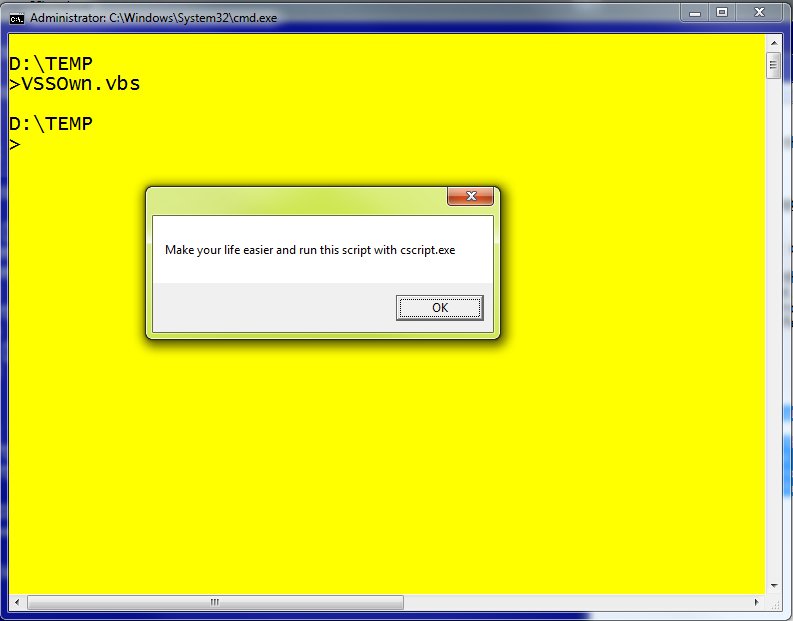
Check if VBScript runs with correct interpreter cscript.exe/wscript.exe 2

If you ever want to make sure, that your VBScript gets executed with the correct interpreter, just add the following code to your script header:

  Set args = WScript.Arguments
   ‚check if executed with cscript
   if UCASE(right(wscript.fullname,11)) <> „CSCRIPT.EXE“ then
   ‚Thanks to PCFreak from germany for that!
   Msgbox „Make your life easier and run this script with cscript.exe“
   WScript.Quit
  end if

This will prevent the ugly popups! Change „CSCRIPT.EXE“ to „WSCRIPT.EXE“ if you want to check the other way.

Most sophisticated utilman exploit for Teensy and other HID emulators 2

These days it is very cheap and easy to to build your own „evil“ USB-dongle that emulates a USB HID (Human Interface Device) and sends keystrokes. You could use the very easy to program „USB Rubber Ducky“ or the cheaper „Teensy USB Development Board„. So you now have a very nice „Phantom Keystroker“ that you can use for pen testing.

You could find many payloads for the „Ducky“ and also for the „Teensy“ on the internet. For me, the most interesting payload was the „Utilman exploit“ for Windows 7, but I was not comfortable with the way it worked.

  • take ownership fo utilman.exe
  • change permissons of utilman.exe
  • replace utilman.exe with something else (cmd.exe)

A sample payload, that does exactly this can be found here: Utilman Exploiter by Xcellerator for the „Ducky“

This is a huge change to the operating system and you leave your marks on the target system. So how could we do the same without going to deep into the target system? ….. I remembered a registry key that could exactly do that!!!

If you want to run CMD.EXE everytime the system tries to execute UTILMAN.EXE just add the following registry key:

HKEY_LOCAL_MACHINE\SOFTWARE\Microsoft\Windows NT\CurrentVersion\Image File Execution Options\Utilman.exe
REG_SZ: Debugger VALUE: cmd.exe

Now every try to execute UTILMAN.EXE will result in opening CMD.EXE instead. It even works if you type UTILMAN (without the extension).

Based on this knowledge, it is now very easy to write a payload for our „Phantom Keystroker“, that:

  • Press WIN key
  • Enter „cmd.exe“
  • Press „APP“ key
  • press „a“ (will do Run as Administrator)
  • press „LEFT“ (brings cursor on YES on UAC prompt)
  • press „ENTER“ (to open the administrative CMD.EXE)
  • enter a command that sets the registry key
  • enter EXIT to close the command prompt

This was very easy to accomplish by using the Teensy 2.0.

Here you can download the working exploit for Teensy 2.0 here: Most_Sophisticated_Utilman_Exploit.zip


Here a post in the hak5-Forum with a working exploit for the USB Ruberducky.

The following video will show you how to run CMD.EXE instead of UTILMAN.EXE just by adding a registry key!

Video of a possible attack.

Links
Inside ‚Image File Execution Options‘ debugging
Launching the debugger automatically

Gegen ACTA – wenn das Internet überleben soll! Kommentare deaktiviert für Gegen ACTA – wenn das Internet überleben soll!

Seit gut zwei Jahren wird ein Abkommen mit dem Namen ACTA verhandelt. Es wird durch die beteiligten Parteien im GEheimen vorangetrieben. Die Auswirkungen werden uns alle betreffen!

Mehr Information auf stopp-acta.info
und in diesem Video.

Jetzt ist die Zeit, die E-Petition zu unterzeichnen: E-Petition


Was ist ACTA?

PCFreak mentioned at HAK5 podcast Kommentare deaktiviert für PCFreak mentioned at HAK5 podcast

My opinion always is and was „Give the internet something back“, so I decided to write to feedback@hak5.org and tell them about the tool I wrote to fix the LNK-File problem. See also my previous article „Release the explorer handbrake„.

I was very impressed when I got back the email from Darren telling me:

> Dude thanks so much for sending this by it’s awesome. I’ll be
> featuring it on an upcoming show. I used to always run into that
> problem when I was a sysadmin. Hated XP for that. You’re doing a great
> service to everyone :)…

So here it is, he read my mail on the Hak5 podcast. Thank you HAK5 for taking my post.
Take a look at 03m36s.

Link: HAK5 podcast episode 1018.1 at 03m36s

« Vorherige SeiteNächste Seite »